Image Converter Plus can convert files into JPEG format. There are lots of formats, but JPEG is the most popular one.
Image Converter Plus supports all existing types of JPEG format.
Image Converter Plus offers two ways of converting JPEG files:
- The first conversion solution is quite traditional. Use Image Converter Plus interface to add files and convert them.
- The second solution is right-click conversion. This is an optimal way of converting files if you do much conversion at home or in your office. Just select the file you need in Windows Explorer and press right mouse button. Select the needed profile and destination folder from the menu and start fast end effective right-click conversion.
Image Converter Plus is a powerful tool designed to optimize file conversion process. Usually, users may need 3 to 5 conversion presets at home and more in office. These presets may include: “Conversion to jpeg format with 128×128 size”, “Conversion to jpeg format with 90 degrees rotation”.
It’s very easy to create and use profiles in Image Converter Plus. You can also save your profiles and use them in your future work. Image Converter Plus dramatically reduces the amount of time it takes to convert files.
Use right-click conversion together with your profiles to achieve best result in shortest possible time with minimal effort. This approach lets you concentrate on your main tasks and makes file conversion a ast and painless procedure.
Below you can learn how to convert your files to JPEG format.
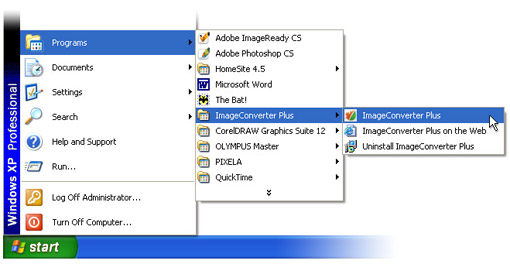
- Launch Image Converter Plus from Windows main menu.
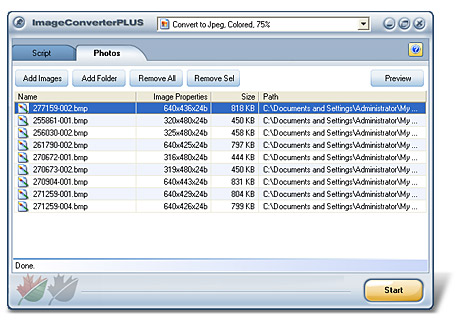
Here’s a screenshot of Image Converter Plus user interface.
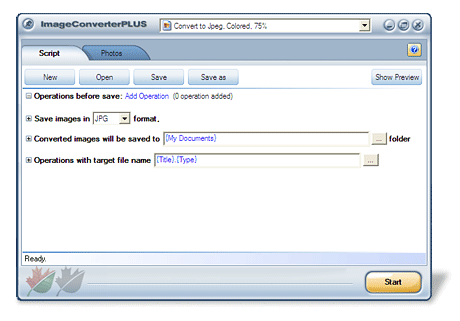
- Select JPEG format as target format.
- Expand “Save images in JPG format” group and adjust any needed settings.
Note: Available color depth is 8, 24, 32 bits. Compression quality depends on “image quality” parameter. Use the slider to specify a value from 25% to 100%. 100% quality preserves original image quality. “more >>” link expands to a professional set of JPEG parameters. You won’t need this section for daily usage:
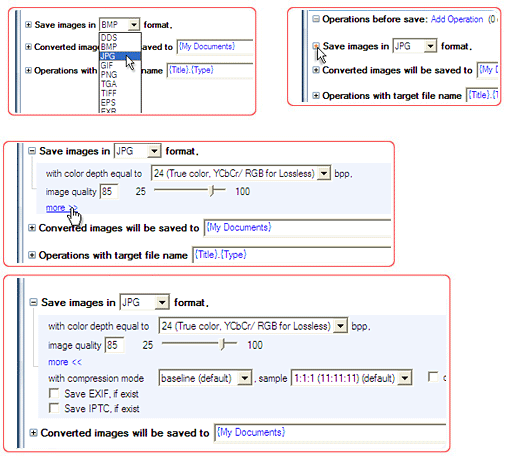
Extra JPEG settings feature saving EXIF and IPTC information. EXIF and IPTC are usually present in photos created with digital photo cameras.
Image Converter Plus can set any DPI value in the resulting image. This parameter is very important when you prepare your photos for printing in a photo lab.
Image Converter Plus lets you choose image resolution. If you use “use original image resolution” option, DPI of the resulting image will be set only if no information on original DPI is present in the source file.
- Select baseline, progressive, lossless compression to create an image of needed quality. Baseline algorithm is the standard compression algorithm.
- When you change Image Converter Plus settings, you can use Preview option to monitor the result of your actions. This option uses a very small amount of your HDD space and no time is needed to open the Image in a third party viewer. Note: Image Converter Plus remembers its last settings and can save user settings as a profile to use it in future.
- This profile can be used for right-click conversion from Windows Explorer context menu and other popular file managers.
Use Image Converter Plus to solve your conversion tasks in a simple and easy way – Image Converter Plusmakes conversion the easiest of your work tasks.
Use Image Converter Plus for business purpose and concentrate on your main goals.
Use Image Converter Plus at home and save time for your hobby and all those things you really love doing.